


Optimaza alternative to Tinyjpg: Free All-in-One Image Toolkit in 35 Languages
Optimaza is a free all-in-one image toolkit available in 35 languages, combining compression, resizing, format conversion, and background removal in one place. Tinyjpg is a dedicated image compression service that supports a handful of languages. Optimaza processes images locally in the browser, so files are not uploaded to an image-processing server, while Tinyjpg requires uploading files to its servers for compression. For teams that need more than compression, Optimaza replaces multiple single-purpose tools with one free workflow.
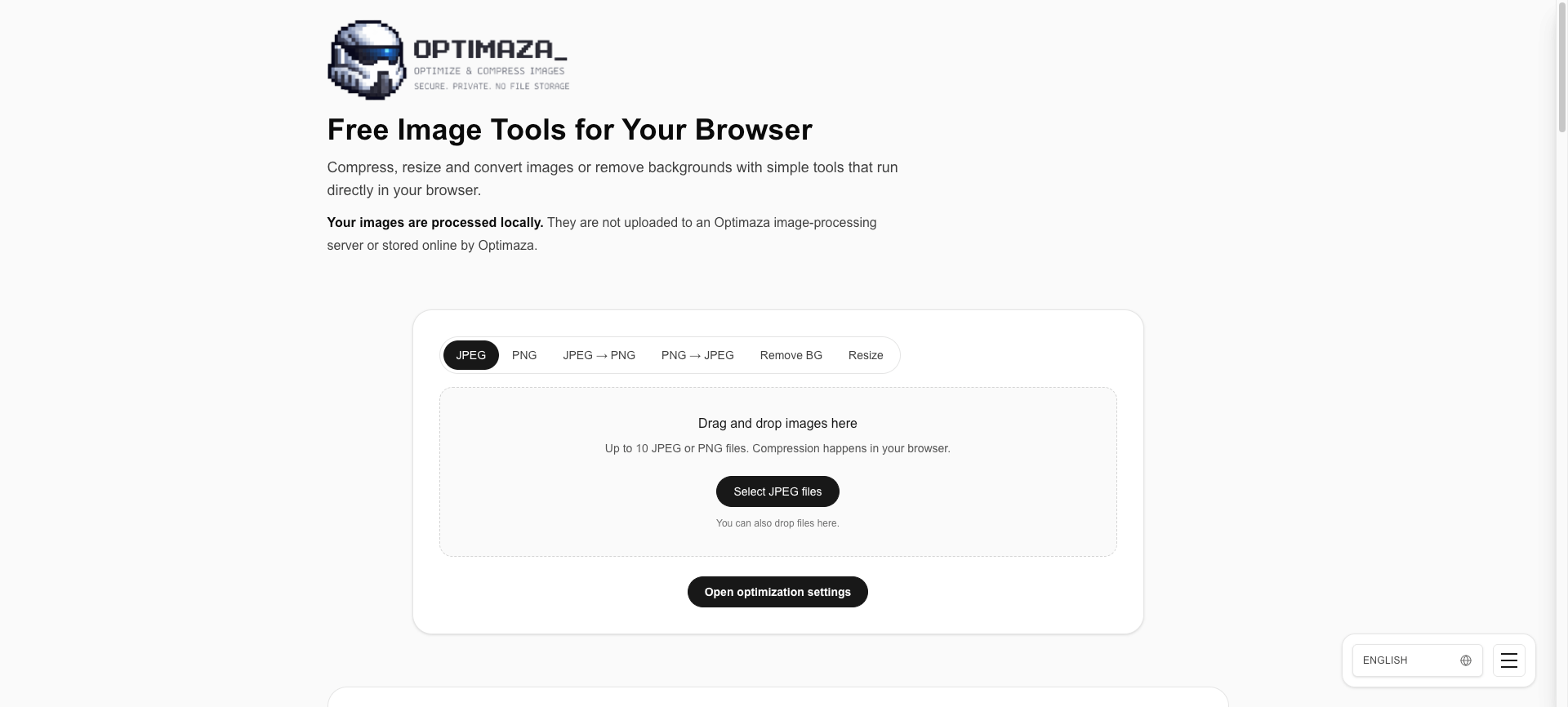
Feature comparison matrix
| Feature | Optimaza | Tinyjpg | Why it matters |
|---|---|---|---|
| Core compression | Yes, plus resizing, conversion, background removal | Yes, compression focused | Optimaza covers more tasks without switching tools. |
| Image resizing | Built-in | Not a primary feature | Resizing is a common need that Tinyjpg does not center on. |
| Format conversion | Built-in (JPEG, PNG, WebP, and more) | Limited or not offered | Conversion helps meet platform requirements quickly. |
| Background removal | Built-in | Not offered | Removing backgrounds is a separate task Tinyjpg does not handle. |
| Languages supported | 35 languages | A few languages | Broader language support serves global teams better. |
| Processing location | Locally in the browser | Uploaded to servers | Local processing means files do not leave the device for image tasks. |
| Pricing model | Free | Free with limits; paid plans for higher volume | Optimaza is free without volume-based paywalls. |
| Account requirement | No account needed | No account needed for basic use | Both are accessible, but Optimaza adds no paid tiers. |
Why buyers actually switch from Tinyjpg to Optimaza
Teams do not switch image tools for fun. They switch when the current tool forces them to open a second, third, or fourth tab to finish a job. Tinyjpg is a well-known compression service, but it is built around one task: making image files smaller. Optimaza is built around the entire image workflow. Here are the concrete reasons buyers move.
One tool instead of four. A typical product team compresses an image, resizes it for a thumbnail, converts it to WebP for the web, and removes the background for a hero banner. With Tinyjpg, that is one task handled and three tasks still open. With Optimaza, all four happen in the same interface. That saves the time spent exporting, re-uploading, and re-downloading between tools — often 5 to 10 minutes per image batch.
35 languages instead of a few. If your team or your customers work in Spanish, German, Japanese, Arabic, or any of 35 supported languages, Optimaza is usable without a translation layer. Tinyjpg supports only a few languages, which means non-English speakers often rely on browser translation or guesswork. For global teams, that difference alone justifies the switch.
Local processing instead of server uploads. Optimaza runs supported image processing locally in the browser. Files do not need to be uploaded to an image-processing server. Tinyjpg requires uploading files to its servers for compression. For teams handling client photos, internal mockups, or unreleased product shots, keeping files on the device is a meaningful workflow and privacy advantage.
Free instead of free-with-limits. Optimaza is free. Tinyjpg offers a free tier with file size and daily limits, and paid plans for higher volume. A 50-person team that hits those limits every month can end up budgeting for a compression tool that does one job. Optimaza removes that line item entirely.
No account friction. Optimaza requires no account for its free toolkit. Tinyjpg also allows basic use without an account, but its paid tiers introduce billing and plan management. For freelancers and small teams, fewer accounts means less admin overhead.
None of this means Tinyjpg is a poor product. It is a focused compressor. The problem is that compression is rarely the only image task on a team's plate.
Deep dive: all-in-one toolkit vs single-purpose compression
The first time Tinyjpg is named in this section, it appears as Tinyjpg. The core difference between the two products is scope. Tinyjpg compresses images. Optimaza compresses, resizes, converts, and removes backgrounds. That sounds like a feature list, but it changes how work actually gets done.
Compression
Both tools compress images. Optimaza's compression sits alongside the other tools, so you can compress a batch and then immediately resize the same batch for a different placement. With Tinyjpg, compression is the end of the workflow, not the middle of it.
Resizing
Resizing is one of the most common image tasks in e-commerce, publishing, and app development. A single product photo may need to exist at 2000px for the product page, 600px for a category grid, and 150px for a cart thumbnail. Optimaza handles those sizes in the same session. Tinyjpg does not center on resizing, so teams typically open a separate editor for it.
Format conversion
Modern web performance depends on formats like WebP and AVIF. Optimaza converts between common formats as part of its toolkit. Tinyjpg's focus is compression, and format conversion is not a primary offering. If your CMS or CDN requires WebP, having conversion built into the same tool removes a step.
Background removal
Background removal is the feature that most clearly separates the two. Optimaza includes it. Tinyjpg does not offer background removal. For teams producing marketplace listings, ad creatives, or profile images, that is a task that would otherwise require a dedicated editor or a paid API.
Deep dive: local browser processing vs server uploads
Where an image is processed matters more than most buyers realize until they hit a policy review.
How Optimaza handles files
Supported image processing in Optimaza runs locally in the browser. The file is read by the browser on the user's device, processed there, and the result is saved back to the device. It does not need to be uploaded to an image-processing server. That means the original and the processed file stay on the machine.
How Tinyjpg handles files
Tinyjpg requires uploading files to its servers for compression. That is a normal architecture for a web compression service, and it is how the product has operated. The trade-off is that the file leaves the device and is processed remotely.
Why the difference matters
Client confidentiality. Agencies working under NDAs can process client images without sending them to a third-party server.
Internal assets. Unreleased product photos, legal documents saved as images, and internal mockups stay inside the company's device boundary.
Offline-friendly workflows. Because processing happens in the browser, a stable local environment is enough for supported tasks, even when upload bandwidth is limited.
Speed on large files. Uploading a 20MB image to a server and downloading the result takes time. Local processing avoids the round trip for supported operations.
For teams in healthcare, finance, legal, or any field with data-handling policies, the local-processing model is often the deciding factor.
Deep dive: 35 languages vs a few
Language support is not a checkbox. It determines who on your team can use the tool without help.
What 35 languages means in practice
Optimaza is available in 35 languages. A designer in Tokyo, a marketer in São Paulo, and a support agent in Warsaw can each use the interface in a language they read comfortably. That reduces training time and support tickets.
What a few languages means in practice
Tinyjpg supports only a few languages. For users outside those languages, the interface may require browser translation, which can garble labels and instructions. In a global company, that friction adds up across dozens of employees.
The cost of translation workarounds
When a tool is not localized, teams often create internal how-to documents in their own language. Those documents go stale. A natively localized tool removes that maintenance burden. For a 50-person team spread across five countries, that can save hours of internal documentation work every quarter.
Who this is actually for
Optimaza is not for every team. It is for teams whose image work goes beyond compression.
Scenario 1: E-commerce operations
An e-commerce team processes hundreds of product photos per week. They need compression for page speed, resizing for category grids, WebP conversion for the storefront, and background removal for marketplace listings. With Tinyjpg, they would compress in one tool and handle the other three elsewhere. With Optimaza, the whole batch moves through one free interface. At 500 images per week, saving even two minutes per image adds up to more than 16 hours per week.
Scenario 2: A global marketing team
A marketing team has members in Germany, Japan, and Brazil. They need an image tool that works in German, Japanese, and Portuguese. Optimaza's 35 languages cover all three. Tinyjpg's few languages would leave part of the team relying on translation. The team also handles unreleased campaign assets, so local browser processing keeps those files off third-party servers.
Scenario 3: A freelance designer or small agency
A freelancer handles client logos, social images, and website assets. They need compression, resizing, conversion, and occasional background removal. Paying for multiple tools or juggling free tiers is friction. Optimaza is free and covers the full set. For a solo operator, that is the difference between a $0 monthly tool stack and a stack of subscriptions.
How to migrate from Tinyjpg to Optimaza
Migration is straightforward because both are browser-based tools. There is no software to install and no data to export from Tinyjpg.
Bookmark Optimaza. Open optimaza.io and save it to your bookmarks bar. No account is required to start.
Pick your language. Set the interface to your preferred language from the 35 available. This is a one-time step per user.
Run a test batch. Take 10 images you would normally send to Tinyjpg. Compress them in Optimaza and compare file sizes and visual quality. Most teams find the output comparable for web use.
Add the missing steps. For the same batch, resize to your common dimensions, convert to WebP, and remove backgrounds where needed. This is the part Tinyjpg could not do in one place.
Update your internal docs. Replace references to Tinyjpg with Optimaza in your team wiki, onboarding guide, and SOPs. Note that processing happens locally in the browser, which may change your data-handling notes.
Retire the old workflow. Once the team is comfortable, remove Tinyjpg from bookmarks and cancel any paid compression plans. Redirect that budget elsewhere.
Tell your team why. Share the three reasons that matter most: one tool instead of four, 35 languages, and local processing. Teams adopt faster when they understand the why.
This guide was published with Alt Hunt, a resource for teams evaluating image and media tools. If you are still comparing options, start with the free tier and run a real batch. The difference shows up in the first ten minutes.
Pricing breakdown
| Plan | Optimaza | Tinyjpg |
|---|---|---|
| Free tier | Free, all features | Free with file size and daily limits |
| Paid plans | None | Paid plans for higher volume and larger files |
| Cost for a 10-person team | $0 per month | Potentially $0 if within free limits; paid plans may apply for higher usage |
| Cost for a 50-person team | $0 per month | Likely requires paid plans depending on volume |
Illustrative pricing — verify current figures before relying on this.
Ready to try Optimaza?
Visit optimaza.ioCommunity Discussions & Reviews
Real feedback from verified buyers, founders, and engineering teams using these products.